

COMMAND OPS ELITE 40 · User manual
Before use
Thank you for purchasing a Browning Trail Camera. Built with carefully selected materials and workmanship, these cameras help you observe and record activity in the field. Read this manual before use. For setup and operating assistance, contact local support.
Quick start
Press the battery eject button; the tray extends approximately 12.7 mm. Pull gently to remove it fully. Install six AA alkaline batteries and an SD card.
Move the power switch to ON. Press MODE once to enter setup and set the date and time with the control pad.
Press MODE once more. After a 20-second countdown, the camera is ready to capture images.
Package contents and SD cards
The package contains one trail camera, one 1.83 m tree strap and one instruction manual. Use a good quality SD card; the original recommends Browning, SanDisk or Kingston. This model supports cards up to 32 GB. Refer to the storage table when choosing a capacity; actual counts vary with recorded content.
Camera diagram
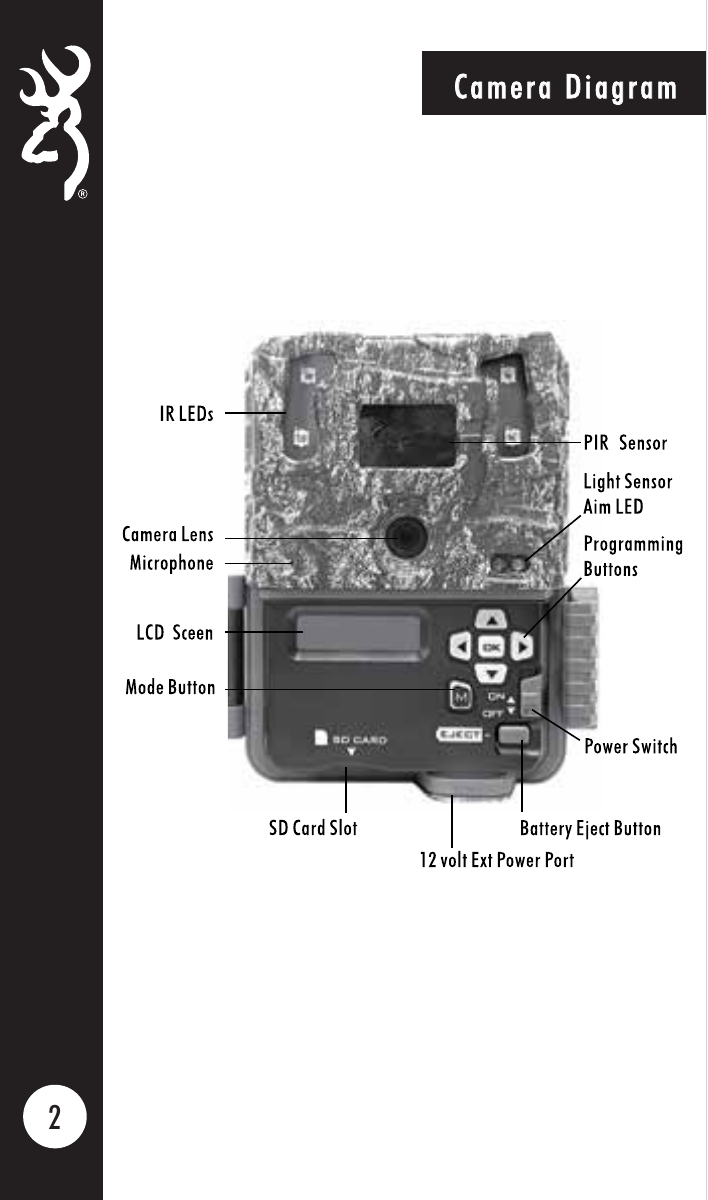
Identify the IR LEDs, PIR sensor, camera lens, microphone, light sensor and aim LED on the front. Under the cover are the LCD screen, programming buttons, MODE button, power switch, SD card slot, battery eject button and 12 V external power port.
Battery installation
Battery Installation Release the battery tray by pressing the Battery Eject button. The battery tray will eject about 12.7 mm. To completely remove the battery tray, simply pull the tray with a bit of force. Install 6 AA Alkaline or Lithium batteries in the battery tray. Make sure you install the batteries with the correct polarity, following the markings on the battery tray. For optimal performance we recommend using Browning branded batteries, Energizer™ or Duracell™. Slide the battery tray into the closed position. Battery Eject Button
Home screen
Home Screen Turn the camera’s power on by sliding the power switch to the ON position. Trail DLY09 0000/2300 The home screen displays the camera operation mode, pictures or videos taken, pictures or videos possible on the SD card, camera delay countdown and battery life meter. With home screen displayed, the camera is armed and ready to start taking pictures. The possible camera modes displayed are Trail, Video,and Timelapse Plus (TL+). The battery life meter shows the charge left in your batteries. The battery indicator changes to EXT when an external battery is plugged into the external power port.
Date and time
From HOME, press MODE once to enter SET DATE. Press OK to highlight the month and adjust it with UP or DOWN. Press RIGHT to move to the day, then the year, adjusting each with UP or DOWN. Press OK to save.
Press DOWN once for the time. Set the hour, minute and AM/PM with the arrow keys, then press OK to save. Press DOWN to continue to CAPTURE MODE. The date is shown in month/day/year order.
Capture mode
Capture Mode Using the RIGHT ARROW key, select the operation mode for your camera. CAPTURE MODE OPTIONS: - TRAIL CAM This setting will take still pictures of game during the day and night, when motion is detected. This is the most popular setting for trail camera use. - TIMELAPSE+ This setting allows you to take timelapse images during the day. In addition, your camera will also take motion activated pictures as well during the day and night to make sure you do not miss any game activity. - VIDEO MODE This setting will take HD video clips of game during the day and night. To continue and set the camera’s CAPTURE DELAY, press the DOWN arrow once.
Capture delay and picture size
Use RIGHT to select CAPTURE DELAY: 5, 10, 20 or 30 seconds; or 1, 2, 5, 10, 30 or 60 minutes. This sets the timeout between motion-triggered photographs or videos. Press DOWN for PICTURE SIZE.
For BTC-4E40, use RIGHT to choose LOW 2 MP, MED 4 MP, HIGH 8 MP or ULTRA 40 MP. Press DOWN for MULTI SHOT. The original family manual also lists 20, 22 and 24 MP variants; those values do not describe the BTC-4E40.
Multi shot modes
Multi Shot Modes To program the MULTI SHOT mode, use the RIGHT ARROW button to scroll through the available options. Your Browning Trail Camera can take multiple shots each time the camera is triggered. The default setting is 1 picture. Your options are as follows: -MULTI SHOT OFF This is the default setting. Your camera will only take 1 picture when triggered. -MULTI SHOT STANDARD The selections available are 2-8 shots in this mode. If you select 4-SHOT STANDARD, your camera will take 4 pictures, spaced 2 seconds apart. -RAPID FIRE This selection allows rapid image capture. When triggered, your camera will take 2-4 RAPID FIRE shots, with only 0.5 seconds between pictures. Your available options are 2,3 or 4 RAPID FIRE shots. Press the DOWN arrow button to set the 8 TEMPERATURE UNITS.
Temperature, info strip and SD management
Temperature Units Your temperature units can be displayed on the picture’s info bar in Fahrenheit or Celsius. To change the selection, Press the RIGHT ARROW key to make your selection. Info Strip Your trail camera has an information bar that is printed at the bottom of each photo taken. This info strip shows the following information: time, date, moonphase, temperature, and camera ID. This option can be turned on or off, using the RIGHT or LEFT ARROW buttons. SD Card Management By turning the SD Card Management feature ON, the camera will erase the oldest pictures or videos on the SD card when the SD card becomes full. This allows your camera to continue taking pictures if you cannot get to the field to swap out a full SD card. If the SD Card Management feature is turned off, when your SD card fills up, the camera will not record any additional pictures or videos when triggered until you change out the SD card or 9 delete the images.
Motion test and camera name
MOTION TEST helps aim the camera. Press OK to enable it, then walk through the target area. The front red LED flashes when it detects you. Press OK once to switch the test OFF before leaving the camera in the field. Press DOWN for CAMERA NAME.
Press OK to highlight the first name character. Change it with UP or DOWN and press RIGHT for the next character. Available characters are capital A–Z, digits 0–9 and a blank space. Press the confirmation key to save, then DOWN for the next setting. The original calls that confirmation key ENTER in this paragraph; the physical key is marked OK.
Timelapse settings
Timelapse Settings Your Browning Trail Camera has the ability to function as a timelapse camera. This is useful if you want to view the entire activity in a given area such as a large field.
TIMELAPSE FREQUENCY Your trail camera can be set to take timelapse pictures at the following frequencies: 5, 10, 20, 30, 60 seconds, 1, 2, 5, 10, 30 and 60 minutes.
TIMELAPSE PERIOD The timelapse duration can be set as well for the cameras. The timelapse duration controls how many hours per day the camera captures timelapse images. In some locations you may want to take timelapse images all day, while in other locations you may need to only take images for 2 hours in the morning and 2 hours before sundown. Your available
TIMELAPSE DURATION options are: - ALL DAY Camera takes images from sunrise to sunset. - 2, 3 or 4 HOUR These durations limit the camera from taking images either 2, 3 or 4 hours after sunrise and 2, 3 or 4 hours prior to sunset.
Note: Your trail camera learns the length of a day and constantly adjusts the 2,3 or 4 hour durtion 11 modes automatically.
Defaults, delete and software upgrade
DEFAULT SETTINGS restores all factory selections.
DELETE ALL erases every image on the SD card and reformats it. The original recommends using it each time a card is installed for use. Back up required files before deleting.
SOFTWARE UPGRADE updates the camera software. Contact support for available model-specific updates and instructions.
Image retrieval
Photographs can be viewed on Windows PCs and Macs. Insert the SD card into the computer’s card slot, or use a separate SD card reader. Open the card drive, then DCIM → 100_BTCF to find the photographs. The original START / MY COMPUTER path refers to older Windows versions; use File Explorer or Finder to locate the card in a current system.
Timelapse viewer installation
Buck Watch Timelapse Viewer is required for timelapse files. Ordinary photographs and video clips can be opened with the image and video programs on your computer. The original manual lists Windows XP or later; compatibility with current operating systems needs separate confirmation. Check the download library for software and contact support for installation or compatibility assistance. After installation, click HELP in the viewer for full operating instructions.
Field installation
Field Installation We recommend mounting your new trail camera at a height of approximately 0.9 m off the ground. The heavy duty 25.4 mm nylon strap threads through the strap mounting loops in the back of the camera and will secure your trail camera to trees large or small. For optimal trail camera mounting, we recommend using the Browning Trail Camera Tree Mount. This mount has a locking gimbal that can position your trail camera at the optimal angle. The back of your trail camera is also equipped with built in security cable loops. These are perfect for using a locking steel cable or a 7.9 mm Python cable lock™ (not included).
US source limited warranty
The following describes the one-year limited warranty in the original US manufacturer manual. It does not establish local warranty terms. Contact local support to confirm the coverage and service process for your purchase.
The US manual warrants the camera against defects in workmanship and materials under normal use and conditions for one year. At its discretion, the manufacturer may repair it or replace it with a new or refurbished unit.
Exclusions: (1) neglect or abuse, including submersion, battery leakage or improper storage; (2) unauthorized modifications or repairs; (3) cracked or broken outer cases due to excessive impact, heat or mishandling; and (4) damage caused by wild animals.
For US warranty service, the original instructs users to contact support first for troubleshooting and return instructions. An original receipt or proof of purchase is required. It assigns packaging and shipping costs to the US warranty center to the customer. Confirm local return arrangements and costs with local support.
Accessories
The original lists AA batteries, SD cards, steel security boxes and battery packs. Contact support to confirm model compatibility and local availability.
FCC statement
This equipment has been tested to comply with the limits for a Class B digital device under Part 15 of the FCC Rules. These limits provide reasonable protection against harmful interference in a residential installation. The equipment generates, uses and can radiate radio frequency energy and may interfere with radio communications if not installed and used as instructed. There is no guarantee that interference will not occur in a particular installation.
If switching the equipment off and on confirms interference to radio or television reception, reorient or relocate the receiving antenna, increase separation between equipment and receiver, connect the equipment to an outlet on a different circuit from the receiver, or consult a dealer or experienced radio/TV technician.
Changes or modifications not expressly approved by the party responsible for compliance may void the authority to operate this device.
Specifications and storage capacity
| Item | Specification |
|---|---|
| Photo resolutions | ULTRA 40 MP / HIGH 8 MP / MEDIUM 4 MP / LOW 2 MP |
| Video | 900p / 30 fps with sound |
| Video length | 5, 10, 20, 30 seconds; 1, 2 minutes |
| Timelapse mode | Timelapse Plus with IR-triggered photographs |
| Timelapse intervals | 5, 10, 20, 30 seconds; 1, 2, 5, 10, 30, 60 minutes |
| Effective pixels | 1920 × 1080 |
| Removable memory | Up to 32 GB |
| Trigger time | 0.3 seconds |
| Field of view | 42° |
| Shooting modes | Still, Video, Timelapse Plus |
| Battery requirements | 6 AA alkaline or lithium cells |
| Mounting strap | 25.4 mm wide, approximately 1.83 m long |
| IR detection | Approximately 21.3 m average |
| IR illumination | Approximately 24.4 m |
| Certifications | FCC, CE |
| Photo information | Time, date, moon phase, temperature, camera ID |
| External power input | 12 V |
| Recording type | 8 GB | 16 GB | 32 GB |
|---|---|---|---|
| Photo ULTRA 40 MP | 900 | 1800 | 3600 |
| Photo HIGH 8 MP | 1900 | 3800 | 7500 |
| Photo MEDIUM 4 MP | 3400 | 7700 | 14000 |
| Photo LOW 2 MP | 7000 | 14000 | 28000 |
| Video ULTRA, 20 seconds | 124 | 248 | 496 |
| Timelapse, all day / 1-minute intervals | 16 days | 32 days | 64 days |
Counts and durations are approximate source examples and vary with recorded content and conditions. Video counts assume 20-second clips; timelapse durations assume ALL DAY at one-minute intervals.