

DEFENDER PRO SCOUT MAX HD SOLAR · User manual
Before use and regional cellular service
Thank you for purchasing a Browning Trail Camera. Built with carefully selected materials and workmanship, these cameras help you observe and record activity in the field. Read this manual before use. For setup and operating assistance, contact local support.
This web guide follows the official BTC-PSMHDS-E international manual, which describes a preinstalled worldwide SIM and a separate Solar Battery Pack. Coverage and plans depend on service conditions and the installation location. Confirm local service conditions before subscribing.
Package contents
The 4G Browning Defender Pro Scout Solar package includes a preinstalled worldwide SIM card, two approximately 1.83 m tree straps and a Solar Battery Pack. Worldwide describes the international SIM service arrangement; confirm coverage and service conditions for the intended location.
Camera diagram
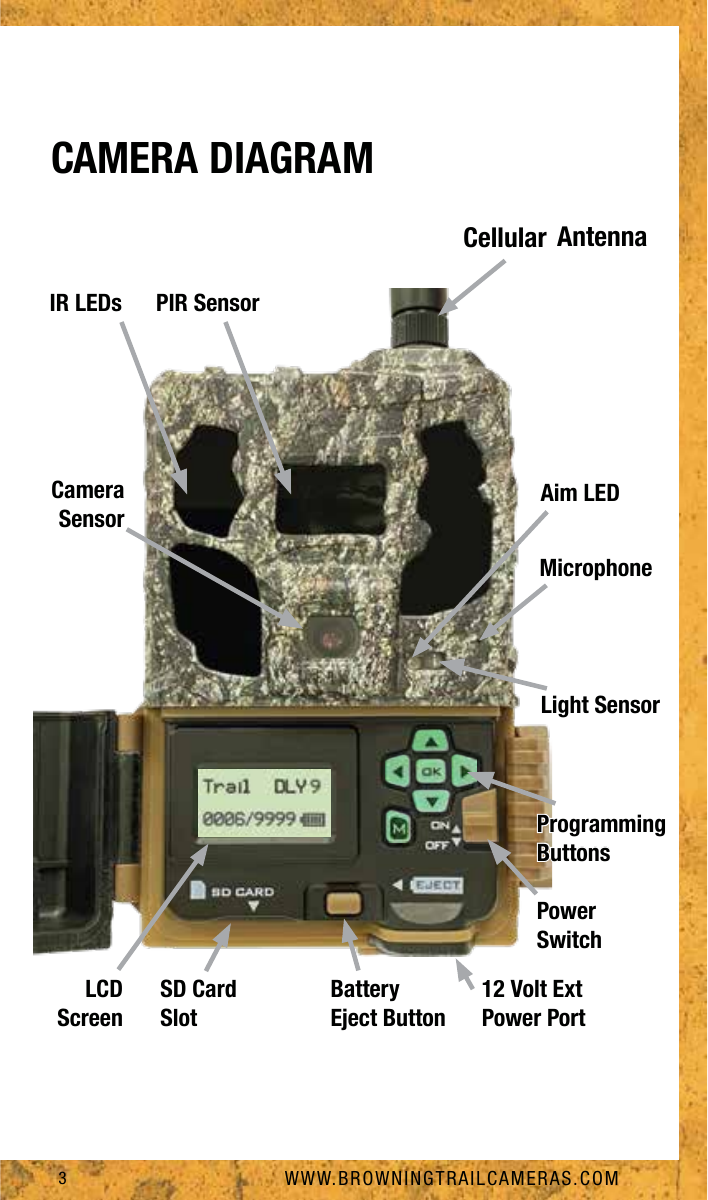
Identify the cellular antenna, PIR sensor, IR LEDs, aim LED, light sensor, camera sensor, microphone, LCD screen, power switch, SD card slot, battery eject button, programming buttons and 12 V external power port.
Batteries, card, antenna and solar panel
SD card: Supply a good quality 8–512 GB card and insert it into the SD slot. The original recommends Browning, SanDisk or Kingston.
Batteries: Press Battery Eject; the tray extends approximately 12.7 mm. Pull gently to remove it. Install eight AA alkaline or lithium batteries following the tray’s polarity markings, then slide it fully closed. The original recommends Browning, Energizer or Duracell.
Antenna: Screw the supplied cellular antenna onto the top of the camera, ensuring the small gasket is present on the camera side of the adapter. Tighten only to a snug fit. Overtightening may damage it.
Solar power pack: Secure the separate included Solar Power Pack to a tree with the supplied strap. Its bottom threaded insert fits Browning camera mounting accessories. Face the panel toward the best sunlight for charging and plug the pack into the camera’s external power port. Installing the eight AA batteries as well is recommended for best results.
Mobile app: Install Strike Force Wireless for iOS or Android from the App Store or Google Play. It provides camera settings control and viewing of uploaded photographs and video clips.
Wireless account setup
1. Install Strike Force Wireless on the mobile device. It controls camera settings and displays uploaded pictures and videos.
2. Follow the on-screen steps to create a user account.
3. Power the camera ON and press MODE for setup. In LTE ON/OFF, press OK to display a QR code. In the app choose ADD CAMERA and point its scanner at the code on the camera screen. The camera is added to the account.
Choose a camera plan in the app and select REVIEW AND PAY to activate it. The original gives a typical activation time of about five minutes; actual timing and available plans depend on service conditions.
Quick cellular test
After installing batteries and an empty SD card, creating the wireless account and completing the plan subscription, perform a test transmission.
1. Power on the camera and press OK to take a test photograph. The home-screen SD counter shows the number captured.
2. Press MODE for setup, select the first option LTE Test and press OK. The camera connects to a tower, sends pictures to the account and displays signal strength.
A successful upload normally appears in the image inbox within a few minutes. Pull down to refresh the app or refresh the computer page. In the field, the camera automatically connects to the service and account, then updates settings and communication times from the online account or app.
Basic setup and operation
When powered on, the Home Screen shows operation mode, battery strength, initial delay countdown and SD card count.
While the display is on, press MODE to enter setup. Use UP or DOWN to browse settings. DOWN follows the order of the manual; some settings can be reached faster using UP.
Use RIGHT or LEFT to view and change the available options for a setting, such as CAPTURE DELAY. When operating with cellular service, the source recommends adjusting settings through the Strike Force Wireless app.
Capture, photo and video settings
CELLULAR TEST: Press OK to make a test cellular connection to the Strike Force Wireless account.
Date/Time: Set the day, month, year and time.
OPERATION MODE: Trail Cam captures day/night photographs and is commonly used on trails and feeding areas. Video records day/night HD clips. Full clips are stored on the SD card and a preview image is sent to the account. A plan that includes video uploads allows the full clip to be requested.
CAPTURE DELAY: Set the timeout between photo or video triggers to 1, 5, 10, 20 or 30 seconds; or 1, 5, 10, 30 or 60 minutes.
PHOTO QUALITY: Low 2 MP, Medium 4 MP, High 8 MP or Ultra 46 MP.
VIDEO QUALITY: Both High and Ultra record 1920 × 1080 at 30 fps; Ultra uses less compression.
VIDEO LENGTH: 5, 10, 20 or 30 seconds, or 1 or 2 minutes.
Multi shot, IR, trigger speed and data strip
MULTI SHOT MODE: Single is the default and takes one photograph per trigger. Standard takes 2–8 photographs spaced 3 seconds apart. Rapid Fire takes 2–8 photographs spaced 0.3 seconds apart.
SMART IR VIDEO: Daytime video continues while movement is detected and stops when the subject stops and no motion is detected. Maximum recording time is two minutes.
IR FLASH POWER: Every option uses invisible infrared illumination. LONG RANGE supports subjects up to approximately 30.5 m away. FAST MOTION is intended for fast-moving subjects on trails. POWER SAVE suits shorter-range subjects within approximately 12.2 m.
TRIGGER SPEED: Normal is 0.7 seconds and suits slow activity such as feeding areas; Fast is 0.25 seconds and is normally used on trails.
TEMP UNIT: Select Fahrenheit or Celsius for the information strip.
IMAGE DATA STRIP: Photographs and videos show temperature, moon phase, date, time and camera name at the bottom.
SD management, motion test and reset
With SD MANAGEMENT ON, the camera erases the oldest photographs or videos as the card fills so that recording can continue. With it OFF, a full card stops new recording until the card is replaced or images are deleted.
MOTION TEST flashes a red LED whenever movement is detected. Walk in front of the camera to check its aim and detection distance.
CAMERA NAME allows a custom name of up to ten characters.
DEFAULT SETTINGS restores the factory options for every setting.
DELETE ALL permanently erases every image and reformats the SD card for the camera. The source recommends formatting whenever a card is installed for use. Back up required files first.
Mobile app: view, sort and upload
Opening the app shows the Cameras Page with thumbnails from all cameras on the plan and access to app functions.
Sorting: Use the Sorting icon to sort by date, time, temperature, pressure or moon phase. The default is newest to oldest.
Filtering: Use the Folder icon to filter by camera and category. Assigning a name to an image or thumbnail categorizes it for later filtering.
Photo upload: All uploaded still images are Full HD; no separate HD request is needed.
Video upload: A plan including video uploads is required. Select the video preview thumbnail and click the HD request icon to receive the full clip at the camera’s next account connection.
App sharing, deletion and remote settings
Share shares captured content. Delete removes images, videos or thumbnails from the app, but does not delete their originals from the camera’s SD card.
For plan usage and settings, select CAMERAS from the bottom menu. Tap a camera card or its cog icon to open that camera’s features and settings. Changes take effect at the camera’s next scheduled sync, rather than immediately.
US source limited warranty
The following describes the one-year limited warranty in the original US manufacturer manual. It does not establish local warranty terms. Contact local support to confirm the coverage and service process for your purchase.
The US manual warrants the camera against defects in workmanship and materials under normal use and conditions for one year. At its discretion, the manufacturer may repair it or replace it with a new or refurbished unit.
Exclusions: (1) neglect or abuse, including submersion, battery leakage or improper storage; (2) unauthorized modifications or repairs; (3) cracked or broken outer cases due to excessive impact, heat or mishandling; and (4) damage caused by wild animals.
For US warranty service, the original instructs users to contact support first for troubleshooting and return instructions. An original receipt or proof of purchase is required. It assigns packaging and shipping costs to the US warranty center to the customer. Confirm local return arrangements and costs with local support.
FCC and radiation exposure
This device complies with Part 15 of the FCC Rules. Operation is subject to two conditions: it must not cause harmful interference, and it must accept all received interference, including interference that may cause undesired operation.
This equipment has been tested to comply with the limits for a Class B digital device under Part 15 of the FCC Rules. These limits provide reasonable protection against harmful interference in a residential installation. The equipment generates, uses and can radiate radio frequency energy and may interfere with radio communications if not installed and used as instructed. There is no guarantee that interference will not occur in a particular installation.
If switching the equipment off and on confirms interference to radio or television reception, reorient or relocate the receiving antenna, increase separation between equipment and receiver, connect the equipment to an outlet on a different circuit from the receiver, or consult a dealer or experienced radio/TV technician.
Changes or modifications not expressly approved by the party responsible for compliance may void the authority to operate this device.
This equipment complies with FCC radiation exposure limits for an uncontrolled environment. During normal operation, maintain at least 20 cm between people and the antenna. Changes or modifications not expressly approved by Prometheus Group LLC may void the user’s authority to operate the equipment.